
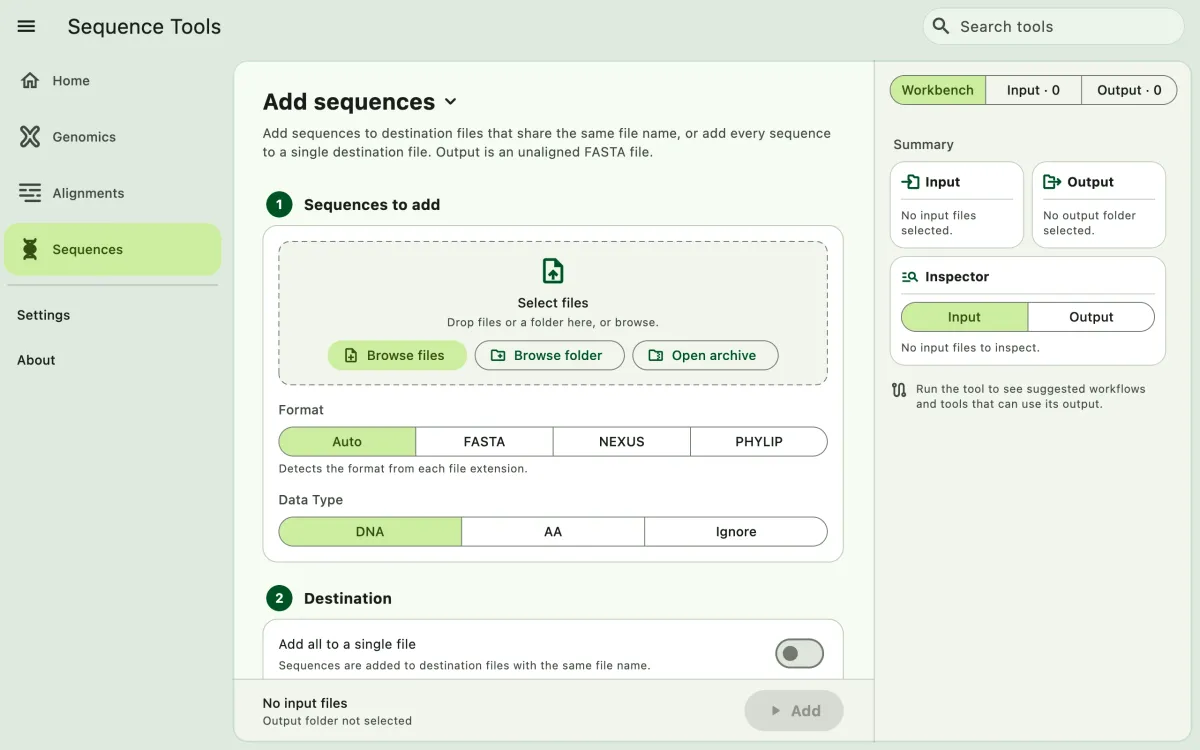
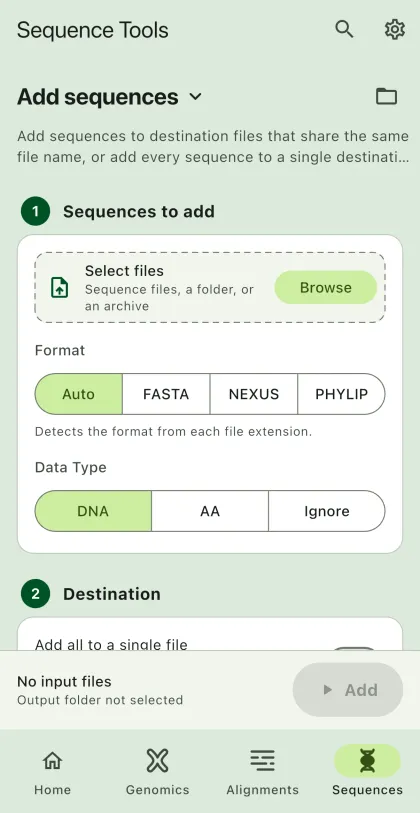
Add sequences to existing sequence files. Use it to add new samples to a set of loci, or to collect sequences from many files into one file.
- Select
Sequencesin the navigation bar A. - Open
Add sequencesfrom the tool list on wide windows, or select the tool name B at the top of the page to switch tools. - Under
Sequences to add, add the files C that contain the new sequences, then select their input format (optional) and data type. Added files appear in the file panel E. - Under
Destination, choose how to add the sequences:- Leave
Add all to a single fileoff to add sequences to destination files with the same file name. For example, sequences innew/locus_1.fasare added toexisting/locus_1.nex. - Turn
Add all to a single fileon to add every sequence to one destination file. Turn onAdd source file name to IDsto keep track of where each sequence came from.
- Leave
- Select the destination files and their format.
- Select
BrowseunderSelect output directoryto choose the output folder. On phones and tablets, enter aDirectory nameinstead; SEGUI saves it in the app's own folder. - Turn on
Set interleaved formatorOnly write files with added sequences(optional). - Select the run button D, labeled
Add, to start the task.
Output
Section titled “Output”The output is unaligned FASTA, even when the inputs are aligned, because the new sequences may not share the alignment of the destination files. We recommend realigning the output, for example with MAFFT.
By default, the app writes every destination file, including those that did not receive new sequences. Turn on Only write files with added sequences to skip them.