
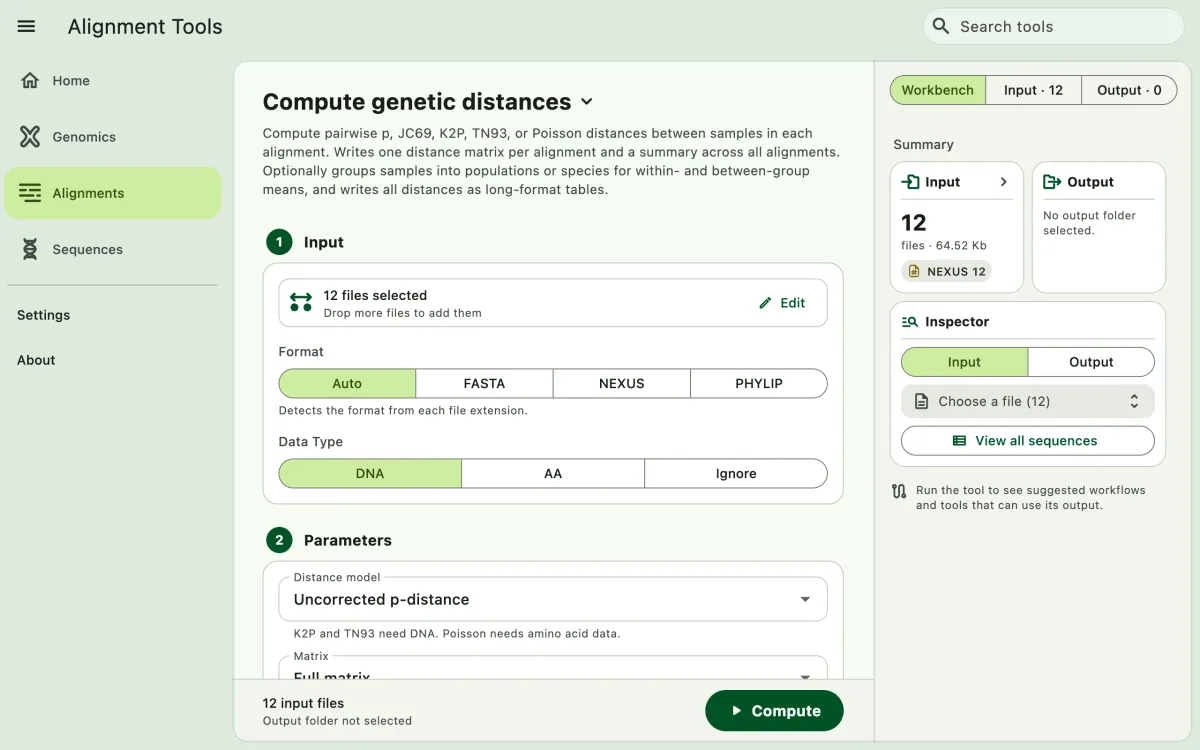
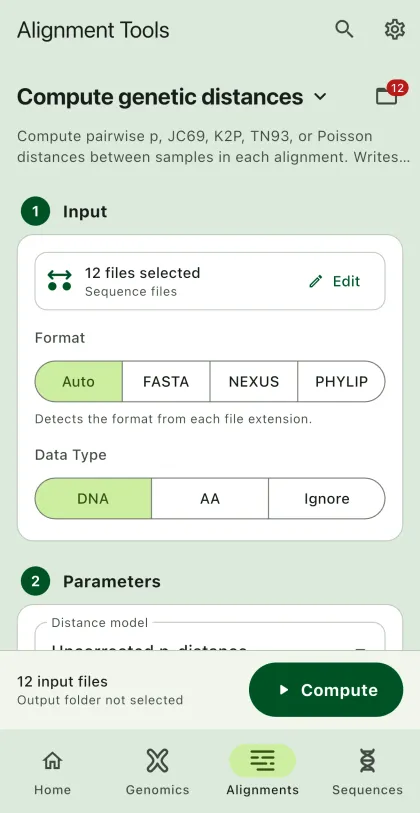
Compute pairwise genetic distances between samples for each alignment. The app writes a distance matrix for every alignment and a summary table across all alignments. It can also average the distances within and between populations or species.
- Select
Alignmentsin the navigation bar A. - Open
Compute genetic distancesfrom the tool list on wide windows, or select the tool name B at the top of the page to switch tools. - Add the input files C with
Browse files,Browse folder, orOpen archive. SEGUI searches a folder and its subfolders for files that match the tool's input format. See file input for mobile options. - Select the input format (optional) and the data type. The data type must be
DNAorAA. - Select the distance model, the matrix layout, and the diagonal value.
- Select how to group samples into populations or species (optional). See Groups.
- Select
BrowseunderSelect output directoryto choose the output folder. On phones and tablets, enter aDirectory nameinstead; SEGUI saves it in the app's own folder. - Add a prefix for the output files (optional).
- Turn on
Long-format tablesto also write the distances of all alignments as one table (optional). - Select the run button D, labeled
Compute, to start the task.
Example: species means
Section titled “Example: species means”For samples named Genus_species_ID, such as Rattus_rattus_FMNH1:
- In
Group samples, selectDetect from sample names, then clickDetect groups. The app switches toSplit sample nameswith_as the delimiter and2fields to keep, and lists each species with its number of samples. - Turn on
Long-format tablesin the output card. - Click
Compute. Opendistance_group_mean.csvfor the mean distances within and between species across all alignments, ordistance_pairwise_long.csvfor every pair of samples.
Parameters
Section titled “Parameters”Distance model
Section titled “Distance model”| Model | Data type |
|---|---|
| Uncorrected p-distance | DNA and AA |
| Jukes-Cantor (JC69) | DNA and AA |
| Kimura 2-parameter (K2P) | DNA only |
| Tamura-Nei (TN93) | DNA only |
| Poisson | AA only |
The app shows an error if the model does not match the data type.
Matrix
Section titled “Matrix”The distance matrix is symmetric, so each value appears twice. Select Lower triangle or Upper triangle to write only one half, as is common for tables in publications. The default is the full matrix.
Diagonal
Section titled “Diagonal”The diagonal holds the distance of each sample to itself. Write Zero (the default), leave it Blank, or write NA.
With groups, the option also sets the diagonal of the group mean matrices and adds two choices:
Mean within the group(the default with groups): the mean distance within each group.Highest within the group: the highest distance between two samples of the group.
Both are NA for a group with one sample, and the sample matrices hold zero on the diagonal. Zero, Blank, and NA apply to both the sample and group matrices.
Groups
Section titled “Groups”When samples are individuals, group them into populations or species to also compute the mean distance within each group and between each pair of groups. Select a method in Group samples:
| Method | Groups by |
|---|---|
No grouping | Samples are not grouped (the default). |
Detect from sample names | A delimiter and number of fields found from the sample names. |
Split sample names | The first parts of each name split on a Delimiter. With _ and 2 in Fields to keep, Rattus_rattus_FMNH1 belongs to Rattus_rattus. |
Regular expression | The first capture group of the pattern, or the whole match if it has no capture group. |
Group file (CSV or TSV) | A .csv or .tsv file with a header row, followed by one sample and its group per row. |
Click Preview groups to check the groups before computing. The preview lists each group with its number of samples, and warns about samples that match no group. These samples are left out of the group means.
With Detect from sample names, click Detect groups. The app picks the delimiter and number of fields that give the most groups while pooling at least 80% of samples with another sample, so Genus_species_ID names are grouped by species. It then switches to Split sample names with these values filled in, so you can adjust them. For example, for Genus_species_population_ID names, detection gives populations. Change Fields to keep to 2 to group by species. See the CLI guide for the detection rules.
Output
Section titled “Output”The output directory contains a per_locus folder with one distance matrix per alignment, named after the input file, and a distance_summary.csv file with one row per alignment. With a prefix, the files start with the prefix instead of distance, such as <prefix>_summary.csv. See the CLI guide for the summary columns.
With groups, the app also writes:
per_locus_group/: one group matrix per alignment. By default, the diagonal holds the mean distance within each group, and the other cells hold the mean between two groups. A within-group mean isNAif the group has one sample in the alignment.distance_group_mean.csv: group means pooled over every sample pair of every alignment, so alignments with more pairs count more.distance_group_pairs.csv: the number of pairs behind each pooled mean.
The Matrix and Diagonal options apply to the group matrices too. The diagonal of distance_group_pairs.csv always holds the number of within-group pairs.
With Long-format tables on, the app also writes:
distance_pairwise_long.csv: one row per sample pair per alignment, with the locus, the two samples, their groups (with groups only), the number of compared sites, and the distance.distance_group_long.csv(with groups only): one row per pair of groups per alignment, with the number of pairs, mean, standard deviation, minimum, and maximum. Rows withallas the locus hold the pooled values.
See the CLI guide for all columns.