
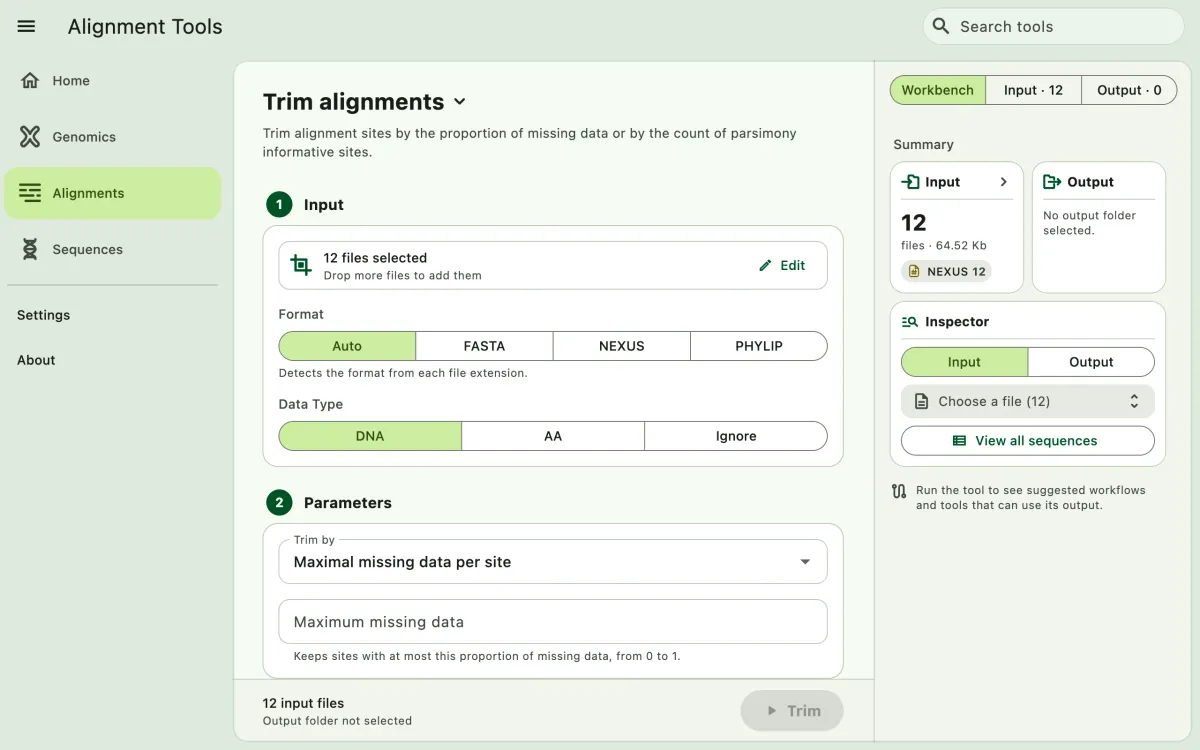
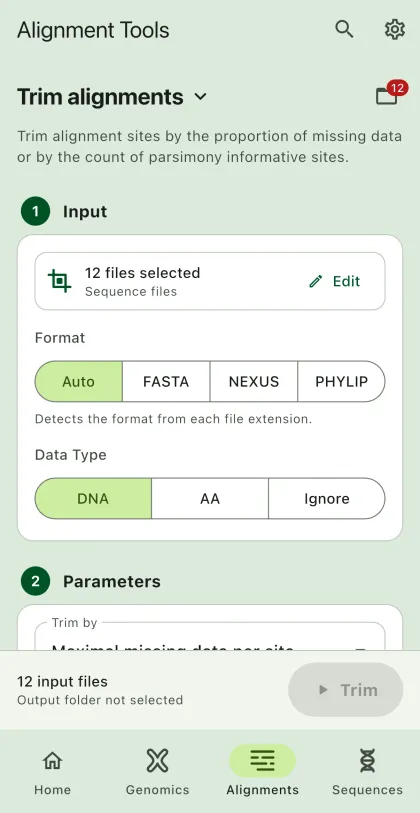
Trim alignment sites based on the proportion of missing data or the number of parsimony informative sites.
- Select
Alignmentsin the navigation bar A. - Open
Trim alignmentsfrom the tool list on wide windows, or select the tool name B at the top of the page to switch tools. - Add the input files C with
Browse files,Browse folder, orOpen archive. SEGUI searches a folder and its subfolders for files that match the tool's input format. See file input for mobile options. - Select the input format (optional) and the data type.
- Select the trimming method and enter its value.
- Select
BrowseunderSelect output directoryto choose the output folder. On phones and tablets, enter aDirectory nameinstead; SEGUI saves it in the app's own folder. - Select the output format. Turn on
Set interleaved formatto write interleaved output (optional). - Select the run button D, labeled
Trim, to start the task.
Parameters
Section titled “Parameters”Maximal missing data per site
Section titled “Maximal missing data per site”The app keeps sites whose proportion of missing data (- or ?) is at most the value. The input is a decimal number between 0 and 1. For example, 0.5 removes sites where more than half of the samples have missing data.
Parsimony informative sites
Section titled “Parsimony informative sites”The app keeps sites with at least the given number of parsimony informative characters. The input is a whole number, such as 2.
Output
Section titled “Output”The trimmed alignments are written to a trimmed_alignments folder in the output directory. The app also writes trimming_summary.csv, which lists the number of sites in each alignment before and after trimming. Alignments with no remaining sites are not written.